

You have three stores and two online carts, and one unit left of your best seller. Which store’s shelf does the website think it is selling from? If you can’t answer that, you already have the problem this post is about.
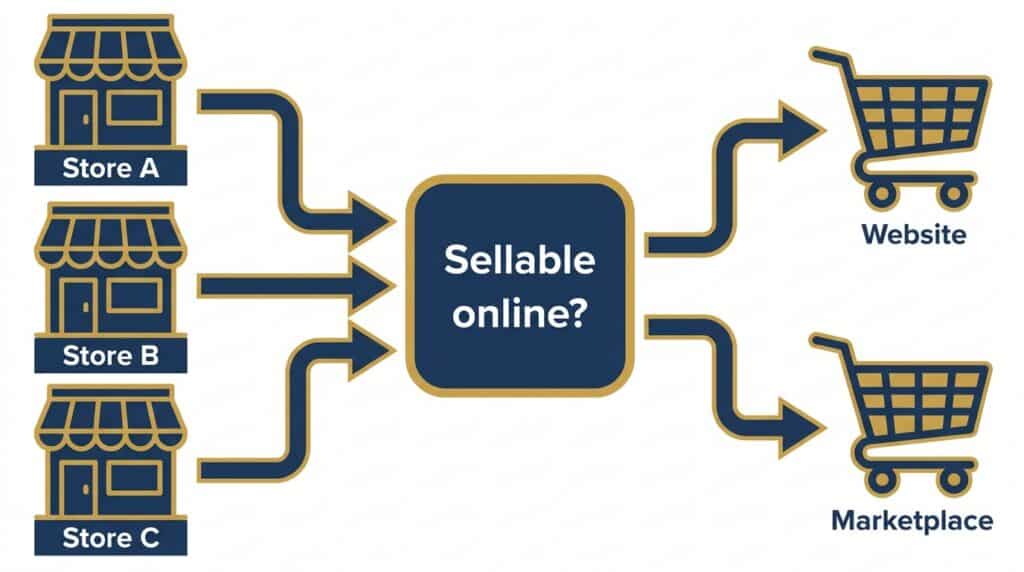
Most multi-location inventory sync advice stops at speed: make the counts update faster. Speed matters, and our guide to real-time inventory sync and overselling covers it, but it answers the wrong first question. Before any cart can show a number, someone has to decide which stores’ stock it is allowed to sell. The short answer: only stock from stores that can actually ship or hold an online order.
Key Takeaways
- Sync moves numbers. It does not decide which stores’ stock a cart may sell; you do.
- Pooling every store, designating online stores, or holding back stock per store: each fits a different retailer.
- Stock in transit belongs to no shelf, so decide whether it counts as available online.
- Sync copies wrong counts to every cart as faithfully as right ones.
- Every cart you add draws on the same count, and carries its own connection fee.
Table of Contents
- Why Syncing Every Store Isn’t the Same as Choosing What to Sell
- Which Store’s Inventory Should Your Carts Show?
- What Happens to Online Stock When Stores Transfer Inventory
- Fix the Counts Before You Sync Them
- Where Multiple Carts Add Risk
- Checklist Before You Connect the Next Cart
- Frequently Asked Questions
Why Syncing Every Store Isn’t the Same as Choosing What to Sell
In multi-store inventory management, two questions get treated as one. The first: is the count current? That is a sync problem, and a real-time system solves it. The second: which stock is this cart allowed to sell? No sync setting answers that for you.
Picture a boutique group with three stores. The flagship holds six of a jacket, the mall store holds two, and the outlet holds one. Pool everything and the website shows nine. That sounds right until a customer buys the outlet’s last jacket online, and the outlet has to pull it off a rack another customer is standing at. The system did its job. The policy was never set.
That policy is the part most guides skip. It is yours to write.
Which Store’s Inventory Should Your Carts Show?
Show your carts the stock from stores that can actually ship or hold an online order, and nothing else. For most multi-location retailers that means one of three choices: pool every store, designate one or two stores as your online stock, or pool everything and hold back a fixed quantity at each store.
Model 1: Pool every store
Every store’s stock counts toward the online number. This suits retailers whose stores can all pack and ship an order, or who run omnichannel services like buy online, pick up in store at any location. The cost: a small store can promise units it needs for its own walk-in customers, and online demand pulls stock off its floor.
Model 2: Designate one or two online stores
Only the chosen locations feed the carts, usually a flagship or a store with a real backroom. Online counts stay conservative and predictable, and store staff know which stock is spoken for. The downside is visible: stock sitting in your other stores cannot sell online, even when the designated store runs out.
Model 3: Pool everything, hold back at each store
All stores contribute, minus a set quantity each keeps for its own floor. A store with six jackets and a hold-back of two offers four online. This protects your busy locations without hiding their stock entirely. The catch is upkeep: set the hold-back once and forget it, and it will be wrong by your next busy season.
If you are unsure, start with Model 2. After more than 50 years of combined retail systems experience, it is still our default: it is the easiest to explain to store staff, and you can widen the pool once the numbers hold.
What Happens to Online Stock When Stores Transfer Inventory
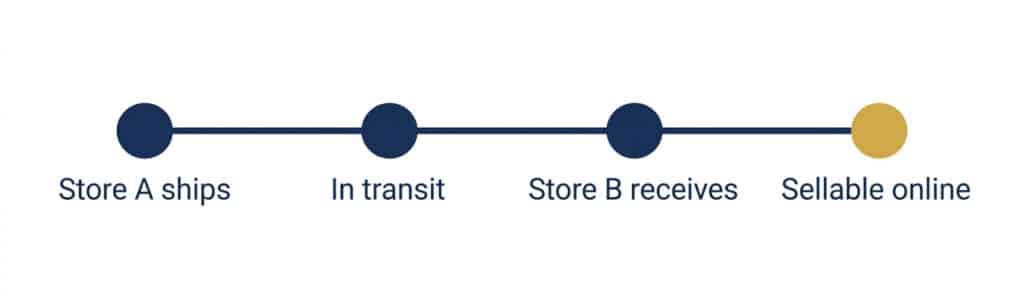
A transfer creates a window where a unit is in neither store. It has left Store A’s shelf and has not reached Store B’s. Nothing is wrong with that unit, but someone has to decide what the cart sees while it travels.
In-transit stock belongs to no shelf. RealtimePOS shows on-hand, on-order and in-transit quantities, plus incoming and outgoing transfers, in one place in real time, which is what makes the question answerable. Decide up front whether in-transit counts as available online. Counting it promises stock nobody can hand over today. Excluding it hides stock that will land on a shelf soon. Either is defensible. Leaving it undecided is not.
Receiving is what makes it sellable again
The count lands on Store B’s shelf only when Store B receives the transfer. If receiving lags three days behind delivery, that stock stays invisible for three days. Treat receiving as a same-day task. And never patch a transfer with two manual adjustments, a minus at one store and a plus at the other. The counts come out right, but the trail is gone the first time the numbers disagree. Record it as a formal stock transfer instead.
Fix the Counts Before You Sync Them
Sync is faithful. It copies whatever the register believes is on hand to every cart, right or wrong.
That matters because store records are often wrong. In a study of 370,000 products across a single retail chain, Raman, DeHoratius and Ton found 65% of inventory records inaccurate. One in five of the wrong records was off by six or more units, according to a University of Arkansas Information Technology Research Institute working paper. That study is more than 20 years old and covered one chain, so read it as a warning about how far records can drift, not as your store’s number.
Two habits narrow the gap. Count your fastest sellers on a rotating schedule instead of waiting for a yearly full count. And receive purchase orders against the boxes in front of you, not the packing slip. Do both before a cart goes live: an oversell caused by a bad count looks identical to one caused by slow sync, and you will lose weeks chasing the wrong one.
Where Multiple Carts Add Risk
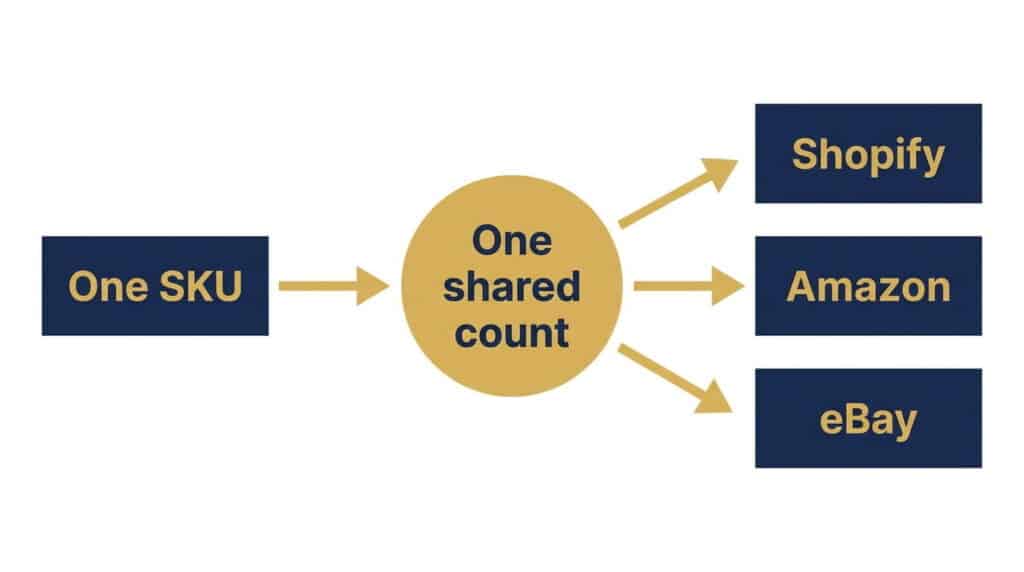
Multi-cart inventory sync means every cart you connect draws on the same count. Sell one SKU on Shopify, Amazon and eBay, and all three should point at one shared number, not three copies kept in step. Our multi-cart e-commerce integration page covers the setup.
RealtimePOS connects to Shopify, WooCommerce, Magento, BigCommerce and nopCommerce, plus Amazon and eBay. The practical risk is not the connection. It is SKU mapping. If the same jacket is listed under three slightly different SKUs, the system sees three products, and each one oversells on its own. Clean the SKUs before you connect a channel, not after.
How fast those counts update, and whether a buffer helps, is a separate question, and our real-time sync guide covers it. One cost note: each additional cart connection carries a separate fee beyond your base subscription, so contact us for exact pricing before you add channels.
Checklist Before You Connect the Next Cart
- Pick the system of record. For a retailer with stores, that is the POS, and every cart reads from it.
- Decide which locations are sellable online, using one of the three models above.
- Decide how in-transit stock counts. Available or not, but written down.
- Clean up SKUs so each product has one identifier across every channel.
- Count your top sellers, then connect one channel first and watch its numbers for a week before adding the next.
RealtimePOS updates counts as each sale posts, streaming changes to a shared cloud database with no polling, SQL replication or FTP transfers, so the counts your rules work from are current, not a batch from an hour ago.
Call 1-888-365-0026 to talk through your stores and carts.
Frequently Asked Questions
Which store’s inventory should show on my website when I have multiple locations?
How do I stop two channels from selling the same last item?
Do I need a separate inventory count for each cart?
What happens to online stock when one store transfers items to another?
Talk Through Your Stores and Carts With Us
Tell us how many stores and carts you run, and get a straight answer on how they would sync.
No pressure, no obligation, just a straight answer for your setup.